Everything you need to host on Nably.
From signup to your first payout.
You choose your account type when you sign up — Rent (guest), List Items (host), or both. Picking “List Items” makes you a host immediately; there's no separate application or approval for the account itself. You'll also accept the Host Agreement at signup.
- Verify your email before you can publish a listing, message a guest, or take a booking.
- Already have a renter account? Switch to hosting anytime from the Host/Travel toggle in the nav — same account, no re-signup.
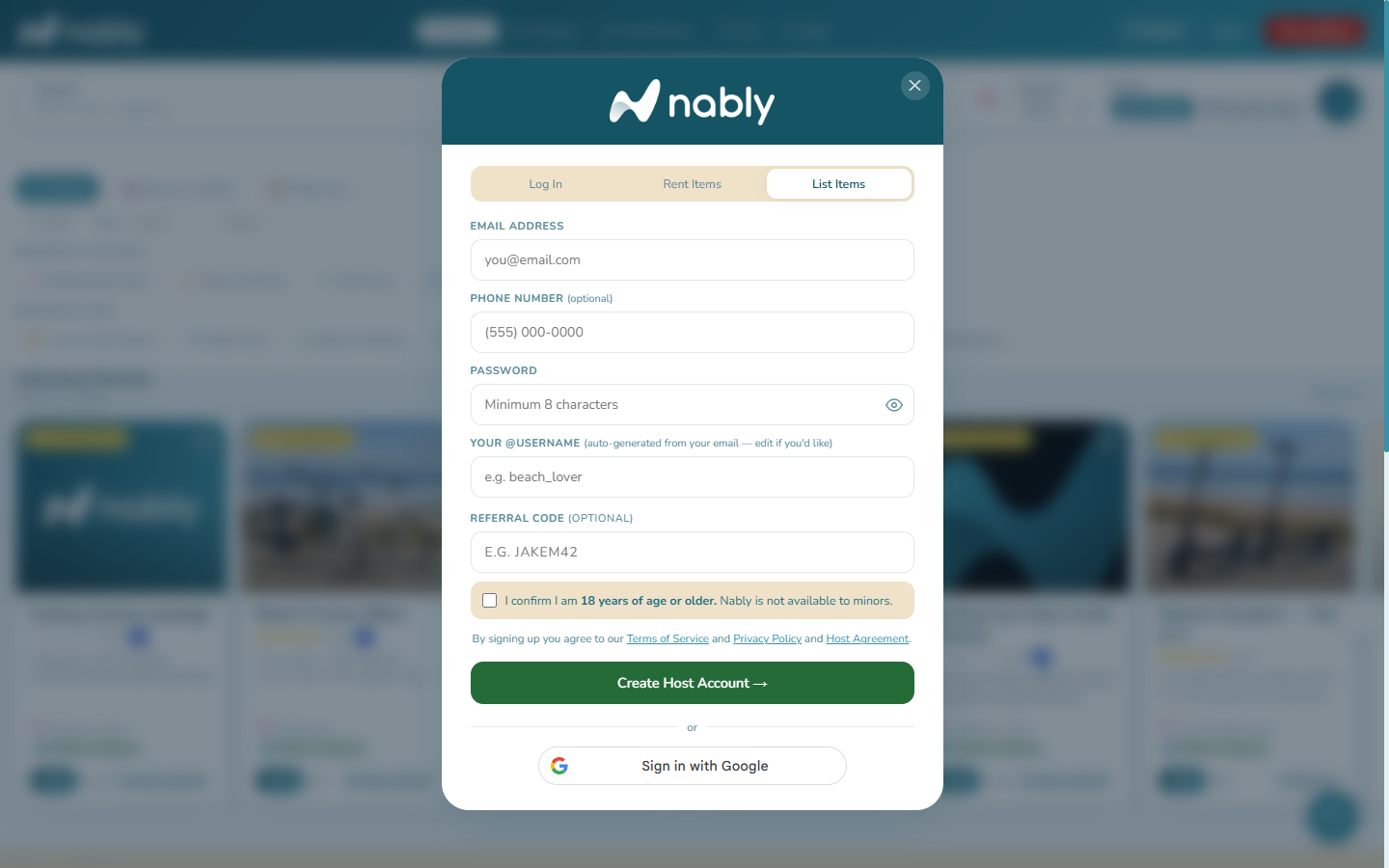
Your listings will not appear in Browse search results until your profile has a photo, a bio of at least 30 characters, and a city. This isn't a soft nudge — it's a hard requirement, so it's worth doing before you create your first listing.
- Add a pickup address if you'll offer guest pickup. It's never shown publicly — it's encrypted and released in-app to a confirmed guest only, 24 hours before their scheduled pickup, never by email.
- An optional business name is what guests see on your listings and profile instead of your username.
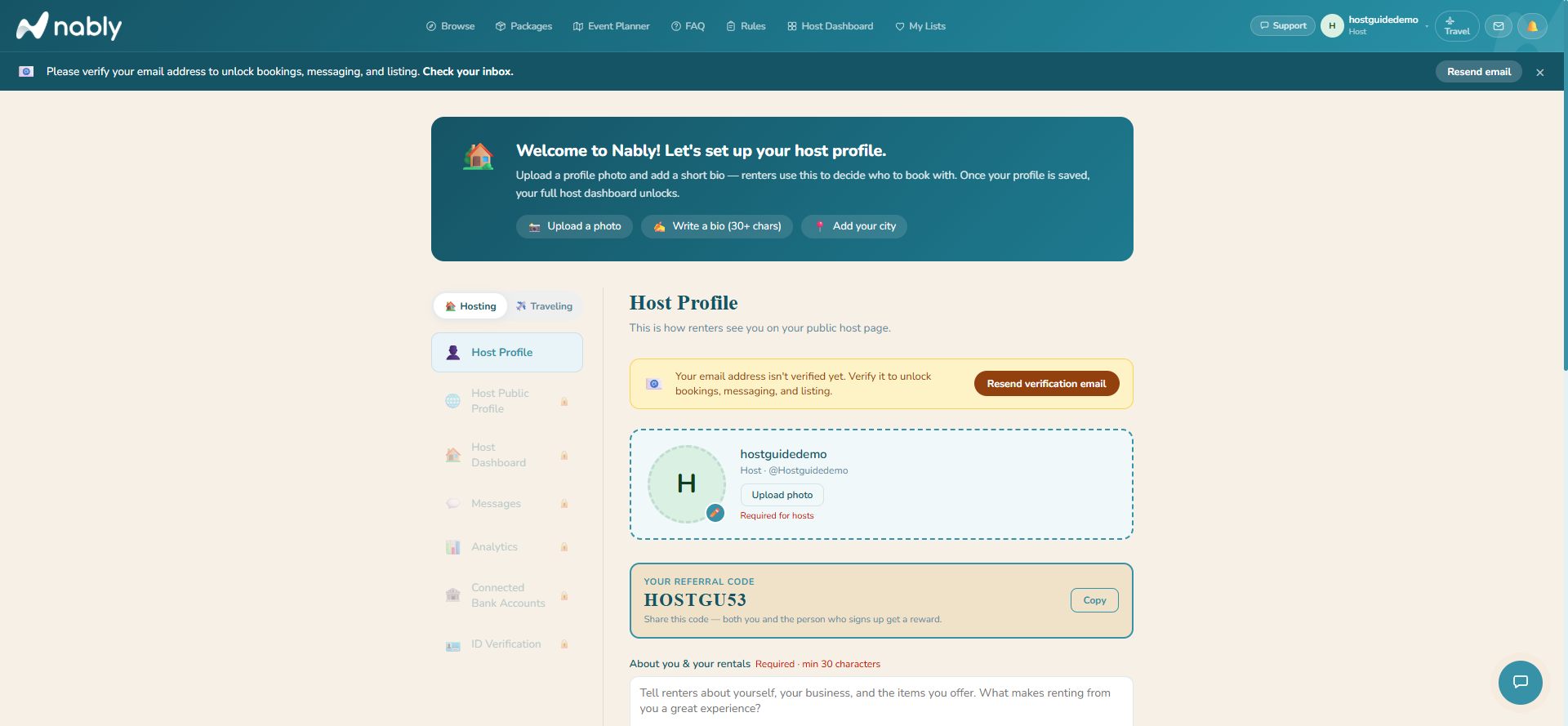
Nably pays hosts through Stripe Express. Click Connect in Host Dashboard → Payouts, complete Stripe's secure onboarding, and you'll return to Nably automatically. You don't need a business entity — Stripe Express supports individuals.
- You cannot receive money until this is connected. Bookings can still come in, but payouts sit pending.
- If you ever disconnect, your active listings are paused automatically and reactivate when you reconnect.
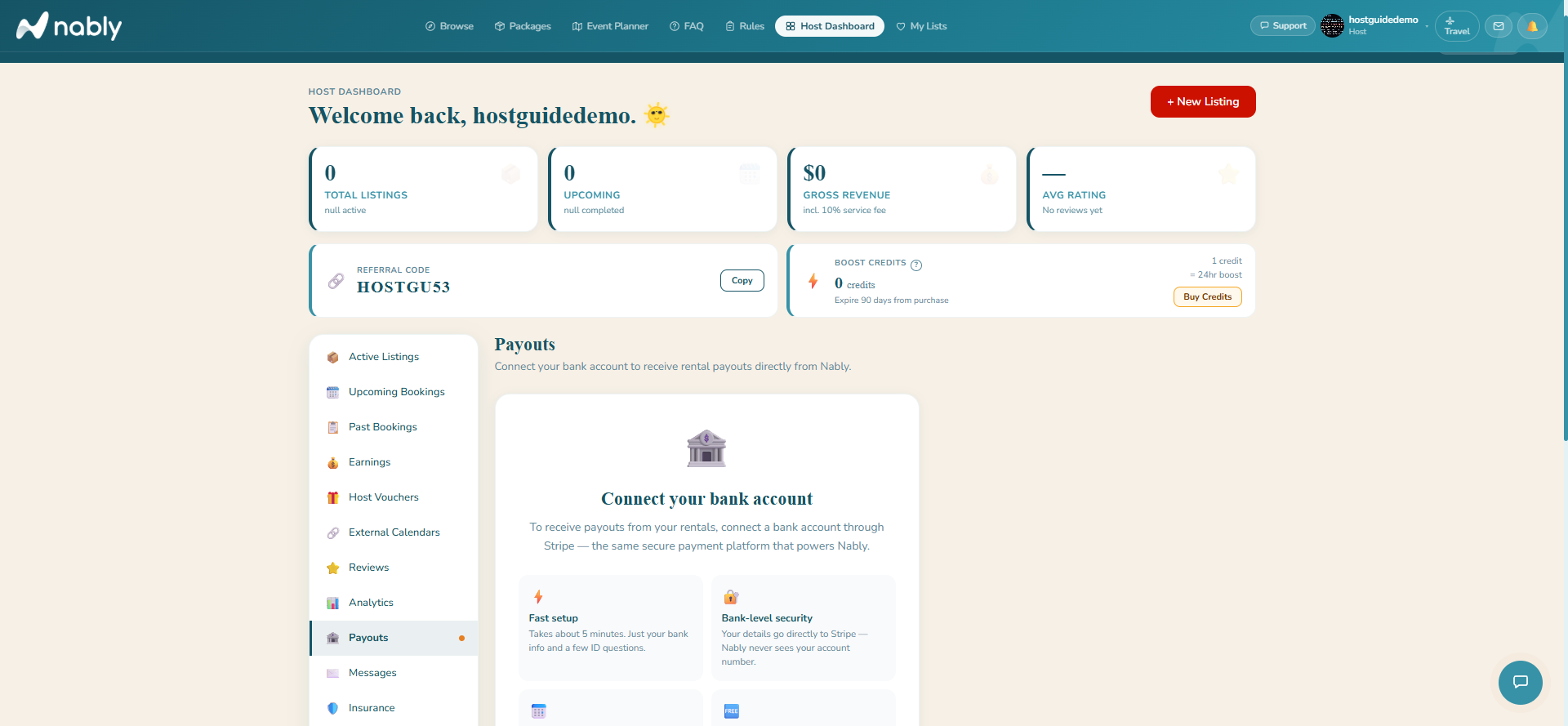
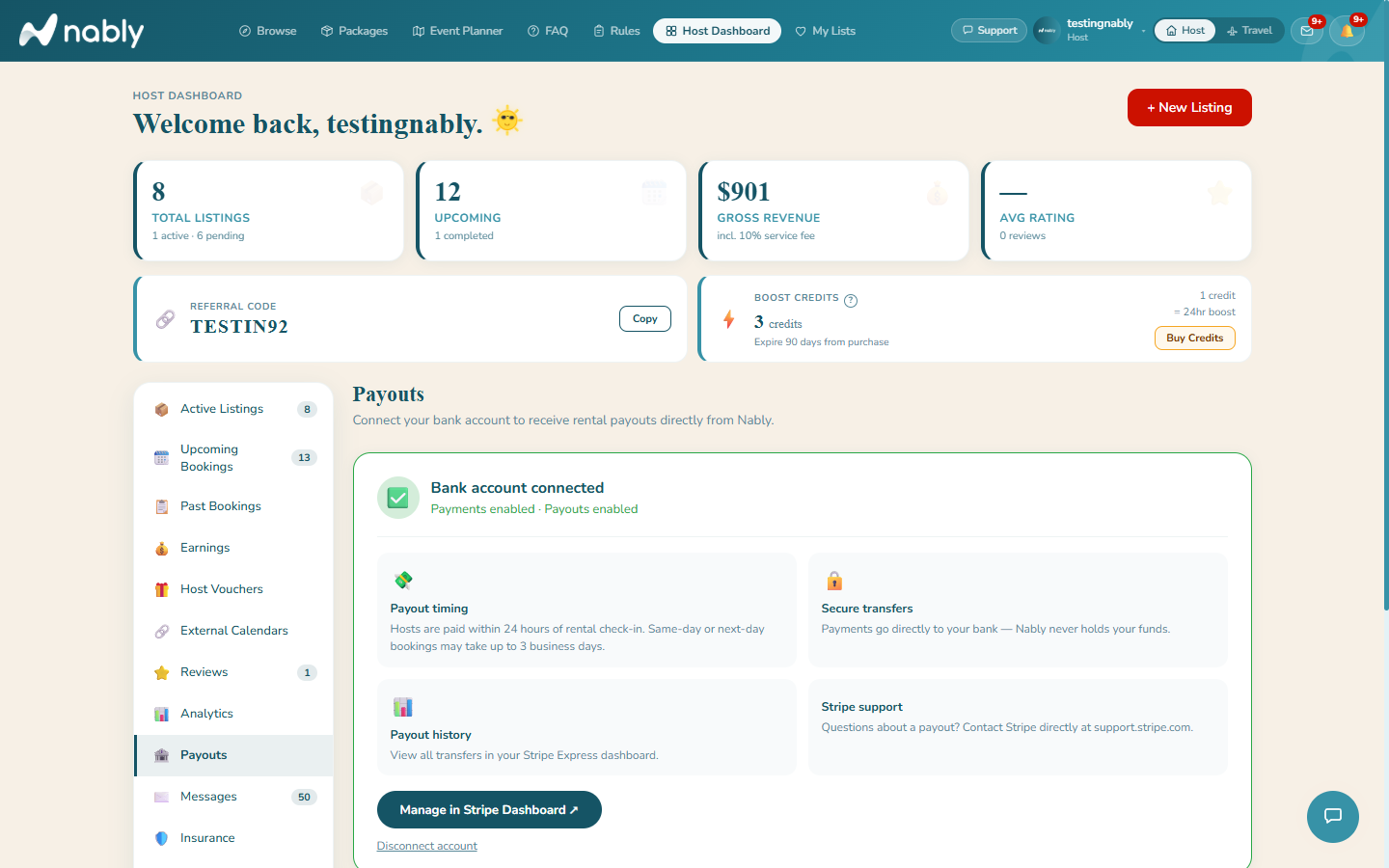
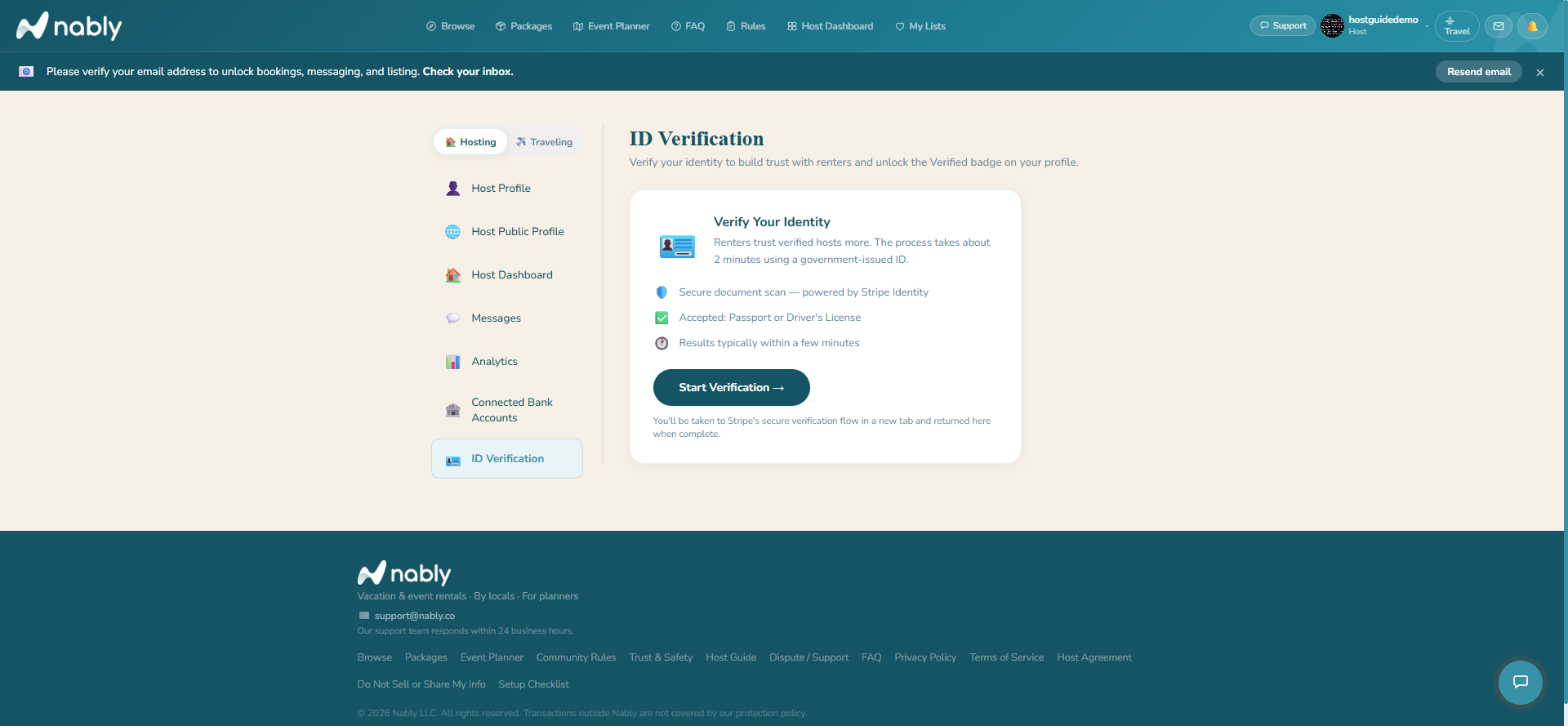
Identity verification is optional but earns a ✓ ID Verified badge on your public profile, which guests see before booking. It runs through Stripe Identity in a new tab — a photo ID plus a selfie. Nably never sees or stores your ID document.
- Results are usually instant; the badge appears on your profile once Stripe confirms.
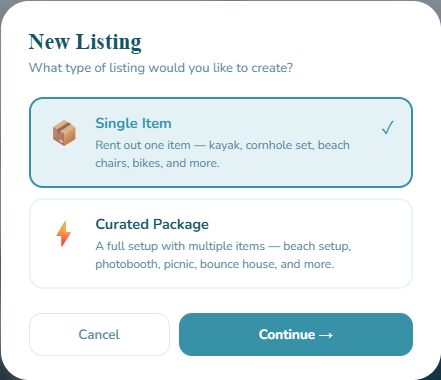
Clicking “+ New Listing” first asks what type you're creating. Single Item is for renting out one thing — a kayak, cornhole set, beach chairs, bikes, and more. Curated Package is for a full setup with multiple items — a beach setup, photobooth, picnic, bounce house, and more.
- Packages unlock pricing options Items don't have: per-guest pricing (a base guest count plus a price for each extra person), a Package Type tag (Beach Setup, Bounce House, Photobooth, and 7 others), setup and retrieval fees, and a free-text “what's included” list guests see before booking.
- You can create both types under the same host account — pick whichever matches what you're actually offering each time.
Title, category, description, and at least 3 photos — a listing can't be approved without them. Set your price and period (per day, or a flat rate for the whole booking) and your general area (neighborhood or city only, never your street address).
- Choose how you deliver it: Guest Pickup, Delivery Drop-off, Delivery + Setup, or Full-Service Attended (you stay for the whole event) — fees are set per type.
- Set minimum/maximum rental days, an optional damage deposit (capped by your daily price — under $50/day means no deposit is allowed), and any add-ons.
- Sales-tax classification is required — there's no default, so you'll explicitly choose taxable or non-taxable when you publish.
- New listings go to review and are typically approved within 24 hours. Editing the title or description sends it back to review; other edits publish immediately.
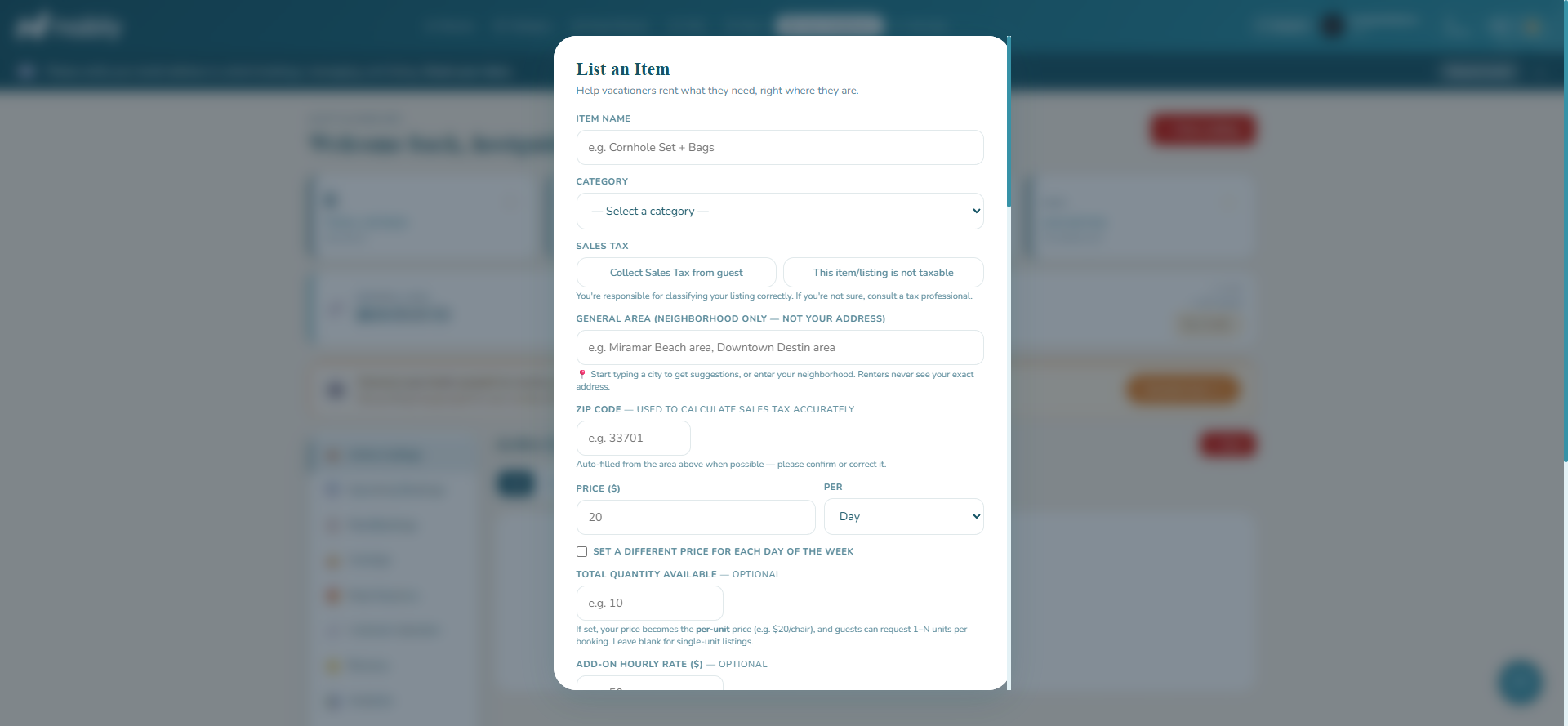
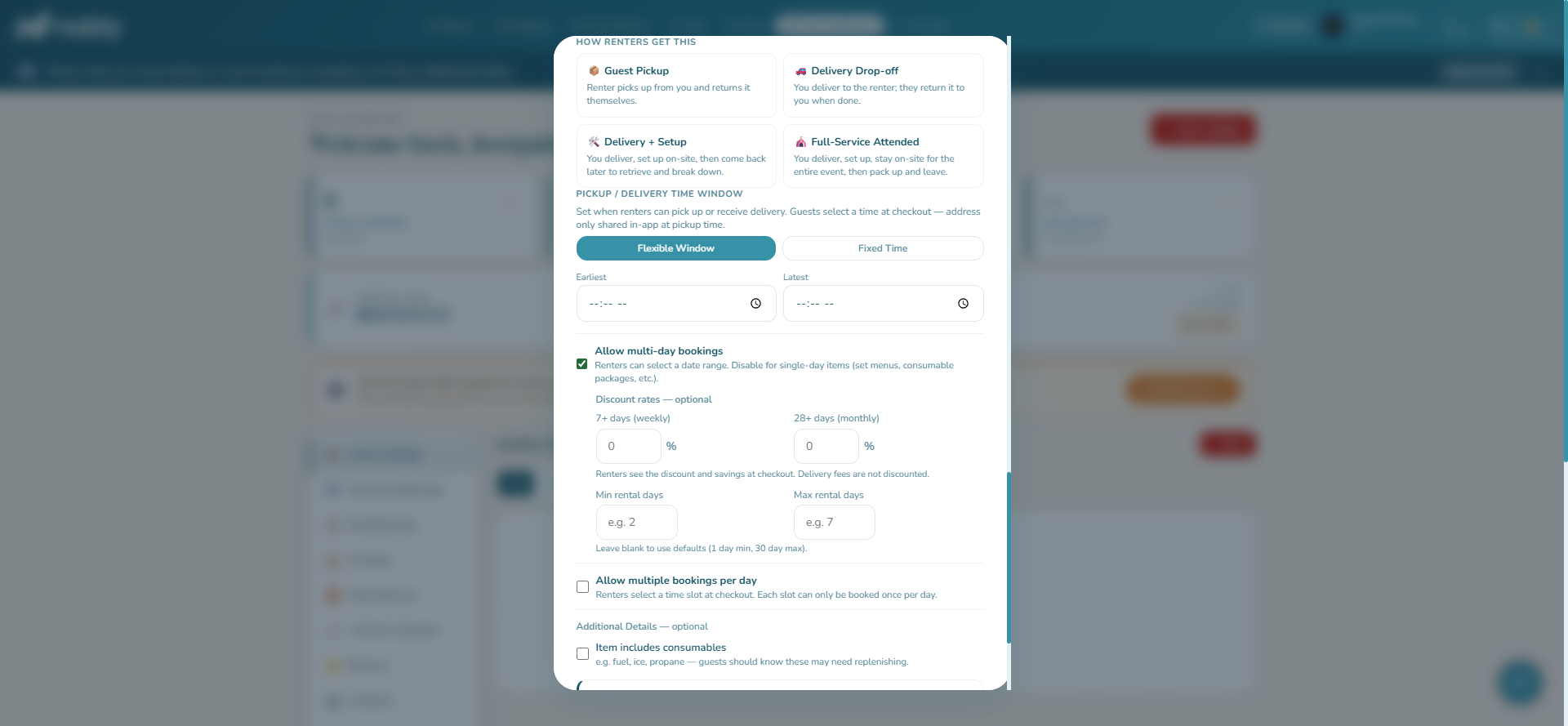
A few fields are easy to skim past on the listing form but meaningfully change how it works — worth understanding since every host's business is different.
- Per Day vs. Event (flat-rate): Day charges by the number of rental days; Event charges one flat price no matter how long the booking runs. Pick flat-rate for a one-time setup or service rather than something rented by the day. Day pricing is also what unlocks day-of-week pricing and multi-day discounts — flat-rate pricing doesn't use either.
- Weather-dependent (optional): lets you or the guest propose a free reschedule or refund if severe weather makes the booking unsafe, instead of the standard cancellation policy. Recommended for outdoor events, beach gear, and similar weather-exposed listings.
- Require event details from guests (optional, off by default): guests can't complete a booking until they fill out a “Tell us about your event” field — useful if you need specifics up front before you can commit.
- Require guests to share contact info (optional, off by default): guests must consent to sharing their email and phone number with you, released once the booking is confirmed — useful for full-service or attended listings where you need to coordinate directly.
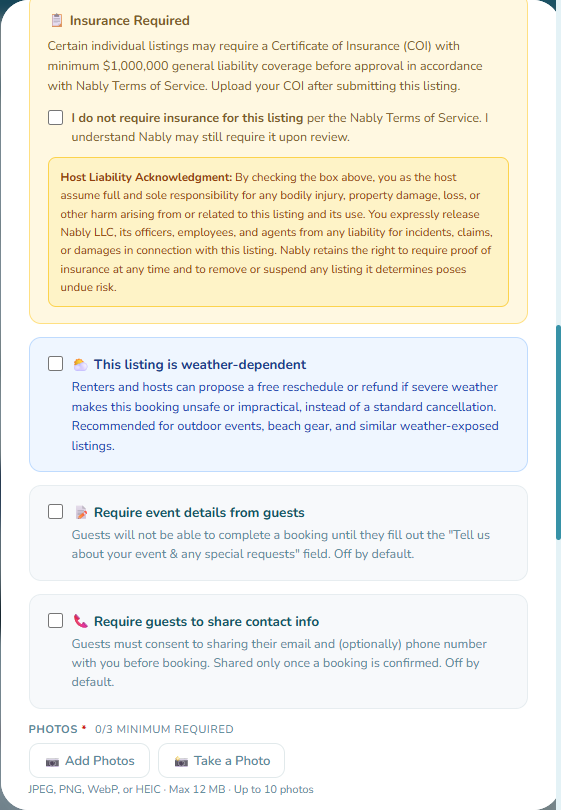
Every listing — Item or Package — has an Occasions field (Wedding, Bachelorette Party, Birthday Party, and more) you can multi-select when you create or edit it. There's no cost or limit to tagging, so select every occasion that honestly fits.
- Tagging an occasion (say, “Wedding”) puts your listing on the matching Event Planner page — this applies to both Item and Package listings.
- Only Curated Package listings also appear on the dedicated Packages browse page for that occasion — an Item listing won't show there even if it's tagged, since that page is packages-only.
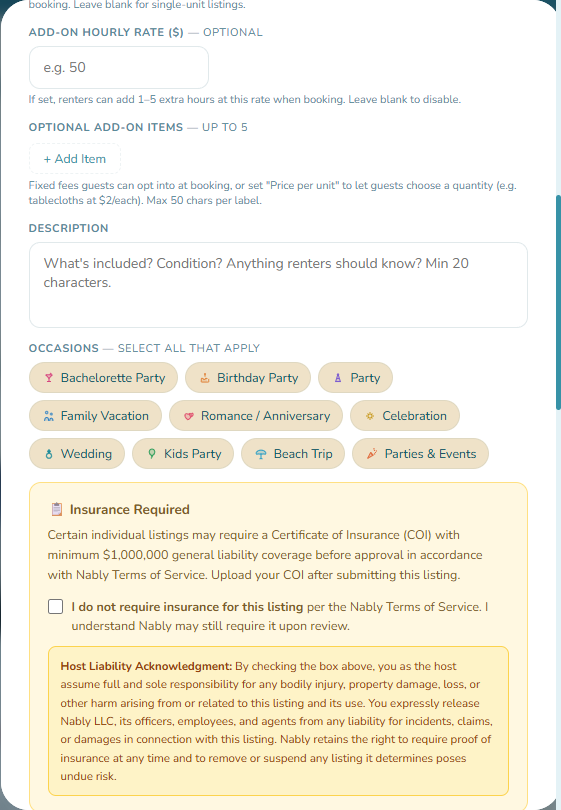
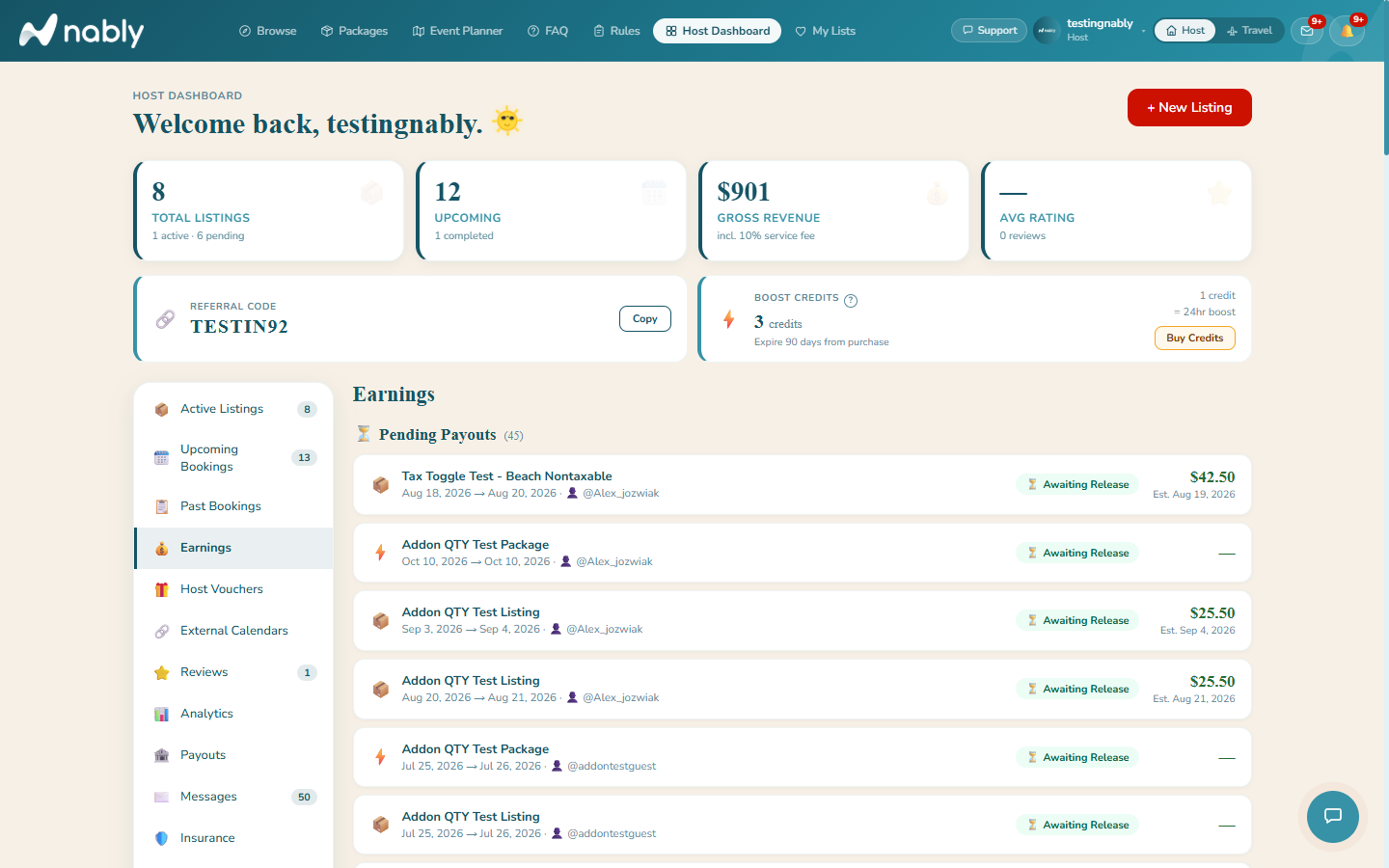
Everything you need to run your listings lives in one place: Booking Requests (if you use Request to Book), Active Listings, Upcoming and Past Bookings, Earnings, Host Vouchers, External Calendars, Reviews, Analytics, Payouts, Messages, Insurance, and Settings.
- Settings and Notifications & external calendars get their own steps next — this is just the map of what's where.
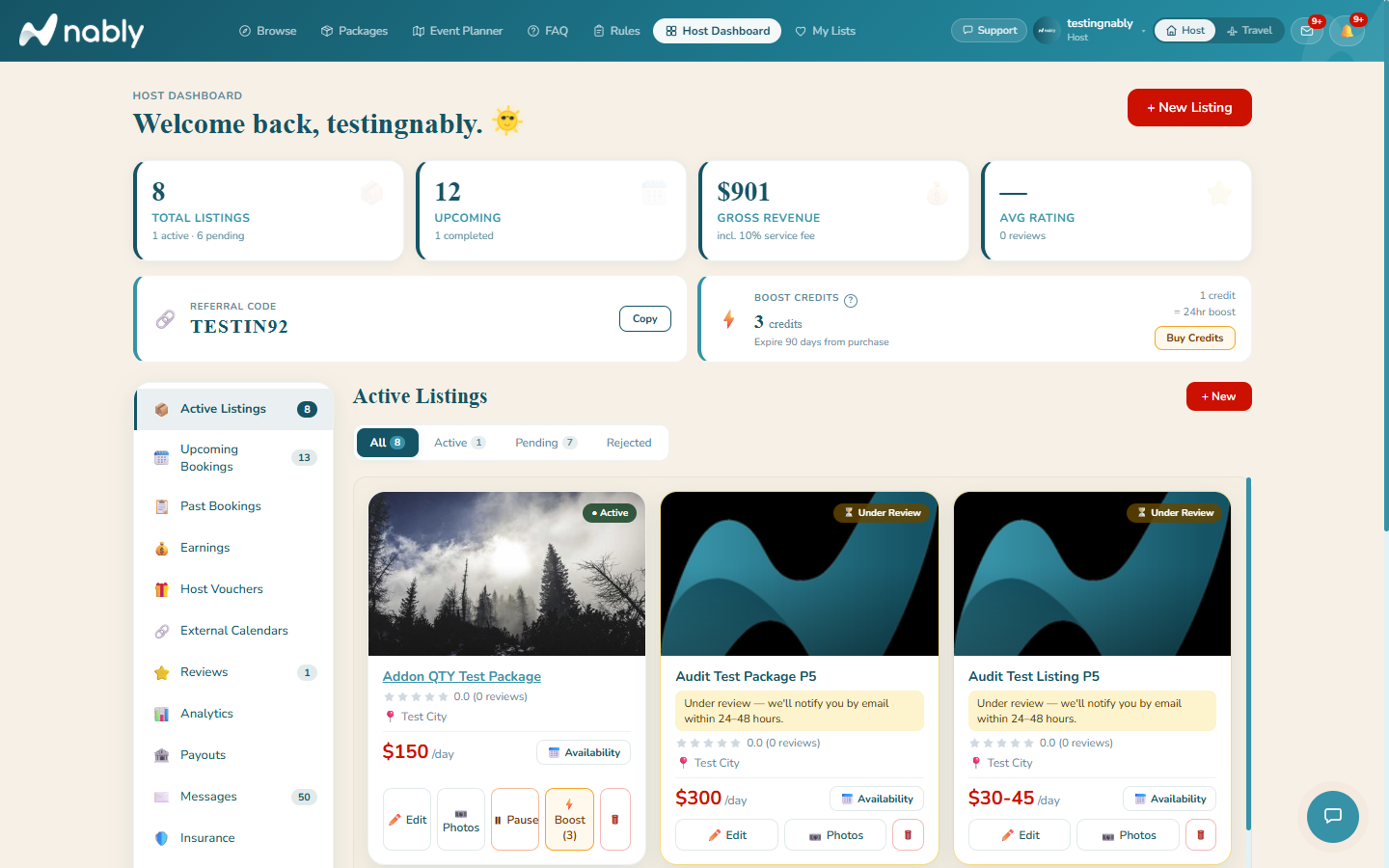
Settings (Host Dashboard → Settings) holds most of your account-wide preferences — the things that apply across all your listings rather than one at a time.
- Booking Mode: Instant Book (guests charged immediately) vs. Request to Book (you approve or decline within 24 hours, guests are only charged on approval) — this is account-wide, not per-listing.
- Vacation Mode: pause every listing at once. When you turn it back off, only the listings that were active before are restored — listings you'd already paused stay paused.
- Block Dates Across All Listings: block or unblock a date range across every listing in one action, without touching each listing's calendar individually.
- Unified Listings Availability (off by default): for hosts who run multiple listings solo and can only fulfill one booking at a time — a confirmed booking on one listing automatically blocks your others for the same dates.
- Pickup Address & Default Pickup Window: your saved pickup address (never public) and the pickup time window that pre-fills whenever you create a new listing.
- You can also link your Google Business Profile from here — see Growing on Nably below.
Two separate systems for staying on top of your account: email notification preferences, and syncing busy dates in from calendars you already use.
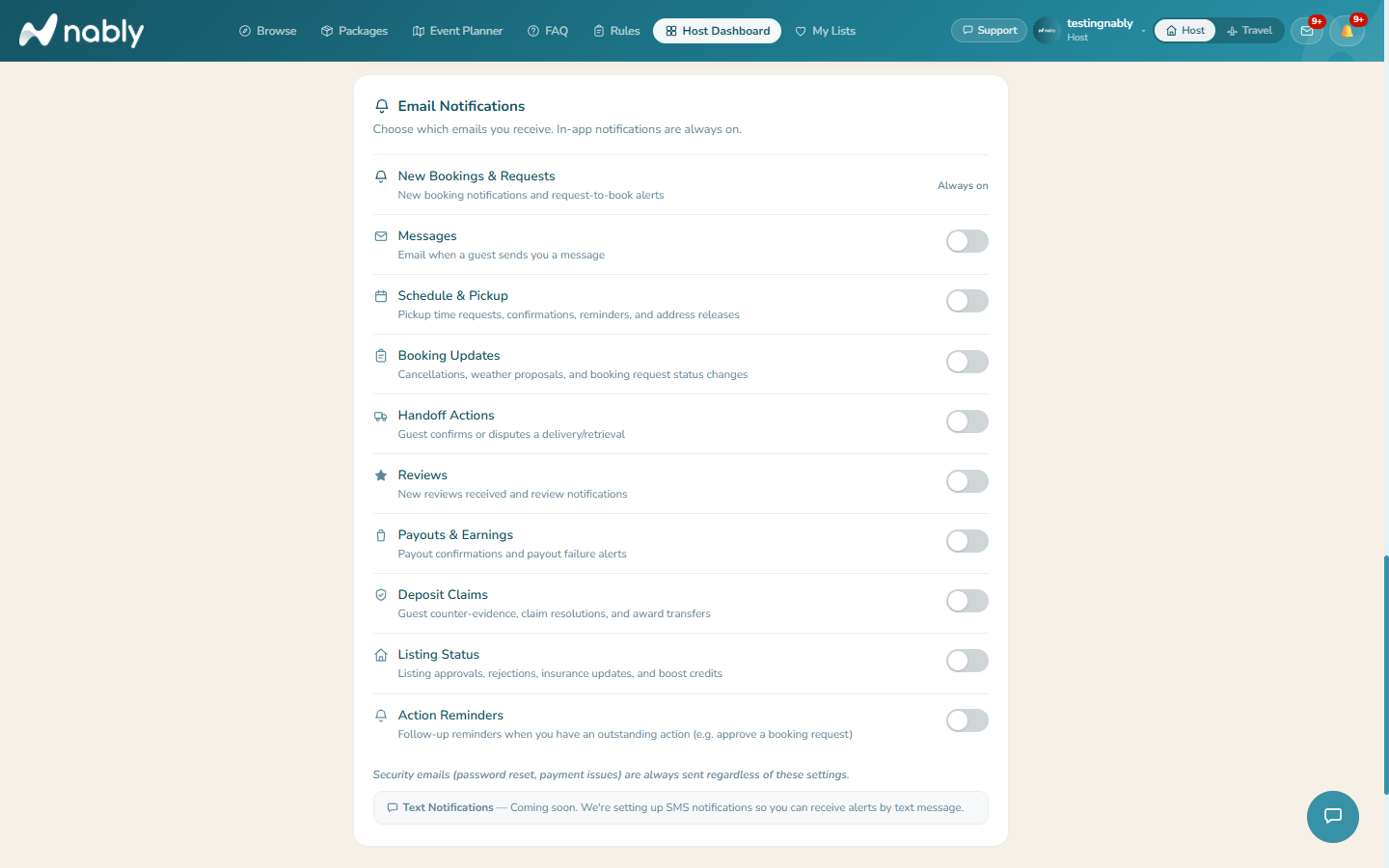
- Email Notification Preferences (Host Dashboard → Settings, or Your Profile — same settings, either place works) let you turn specific categories on or off individually — new bookings, messages, payouts, reviews, and more — rather than all-or-nothing. A few categories are always on. Text/SMS notifications are marked “Coming soon” and aren't available yet.
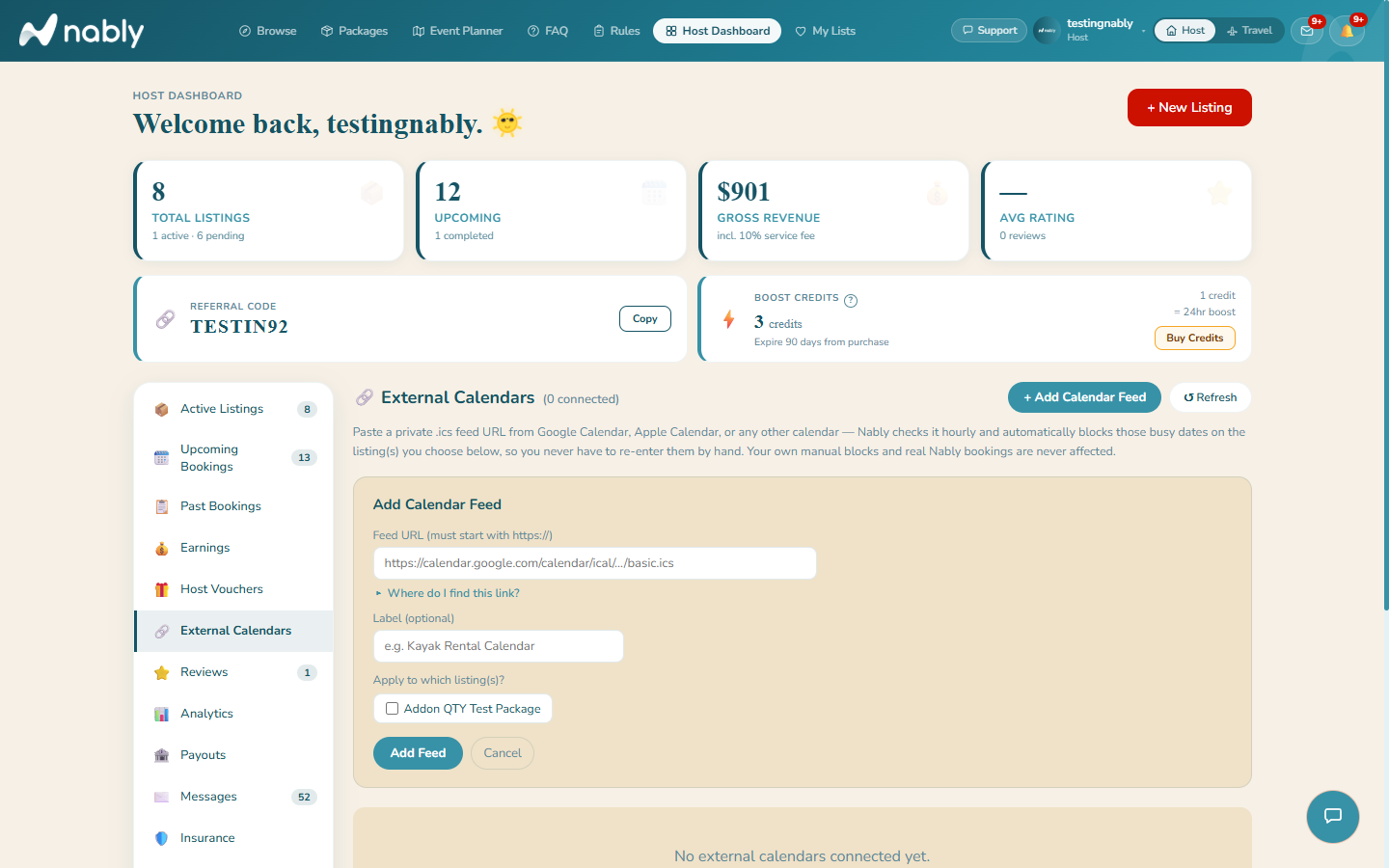
- External Calendars (Host Dashboard → External Calendars) is where you paste a private .ics feed URL from Google, Apple, or Outlook calendar — Nably checks it hourly and auto-blocks those dates on whichever of your listings you choose. Your own manual blocks and real Nably bookings are never affected.
- Each connected feed shows its sync status (Not yet synced / Synced / Error) and can be manually synced or removed anytime — removing a feed clears its blocked dates immediately.
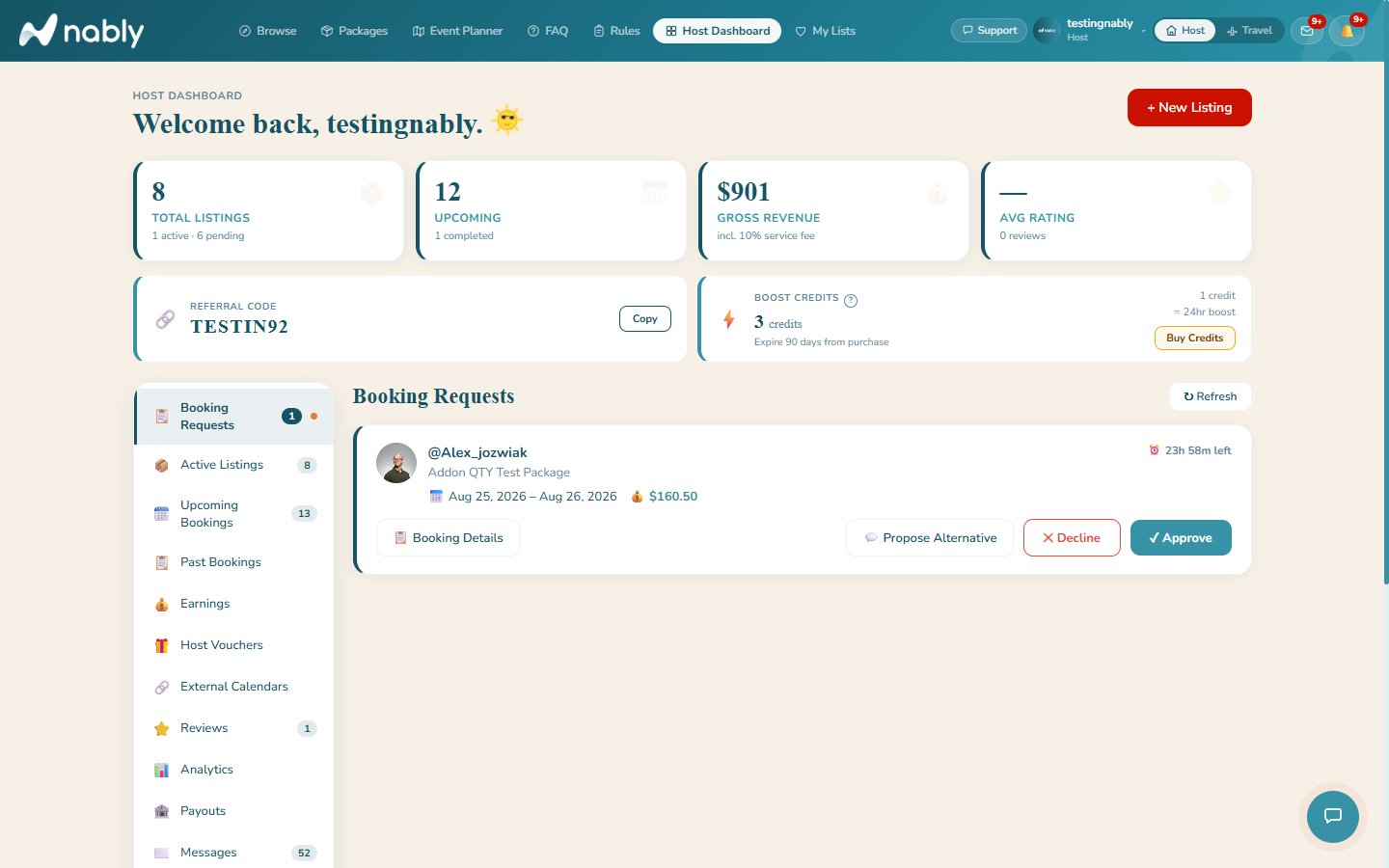
With Instant Book, a booking is confirmed the moment a guest books. With Request to Book, you approve, decline, or propose alternative dates within 24 hours — the guest's card is authorized but not charged until you approve. Set which mode you use in Settings.
- Message the guest in-app. Contact details stay masked until the booking is confirmed.
- On the rental day, mark the handoff from the booking card — the guest confirms, or it auto-confirms after 24 hours. Full-service listings get a single “Mark Event Complete” action instead.
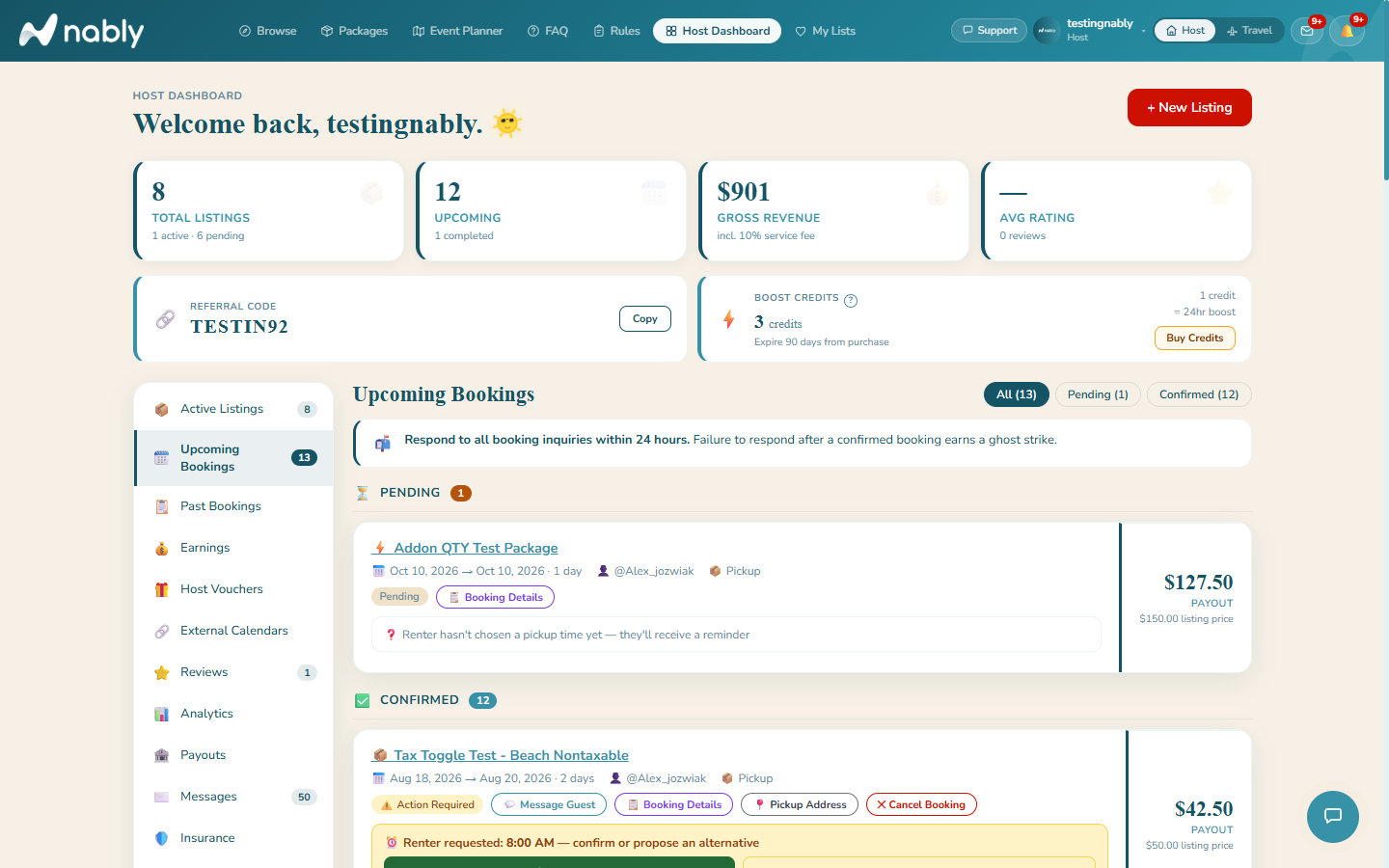
Payouts release the later of 24 hours after check-in or 3 days after the guest's card was charged — the 3-day floor exists because Stripe needs time to settle the guest's payment before Nably can transfer it. Same-day and next-day bookings can take up to 3 business days.
- Commission is 15% (5% for Founding Hosts, for their first 6 months). Guests pay a separate service fee on top of your price — it's never deducted from your earnings.
- Damage deposits are collected from the guest at booking and refunded about 7 days after the return date if no claim is filed — deposits never pass through your payout.
- Sales tax is collected from the guest and remitted by Nably — it's not part of your earnings.
Reviews are mutual-blind and reveal once both sides submit, or when the 15-day window closes. Boost credits push a listing to the top of Browse for 24 hours. Host Vouchers let you comp a specific guest on a specific listing, funded by you. You can also earn badges (Founding Host, Trusted Host, Community Builder, Ambassador) and link your Google Business Profile to show your existing Google rating on your Nably profile.
Still have questions?
Our FAQ above covers most situations. For anything else: